Add and Manage Applications
Add and manage applications receiving data from other organisations. Generate Software Statement Assertions to register client applications at Data Providers' Authorisation Servers. Request certificates, generate key pairs, and more.
Prerequisites
-
Your organisation has one or more Roles assigned.
If your organisation has no role assigned, contact with your Trust Framework Administrator to have one assigned.
-
Get an Access Token with the
directory:websitescope - if you want to publish Authorisation Server Certifications using Connect's APIs.
Create Application
-
Within an Organisation you administer, select Applications > New Application
-
Define roles for your Application that it inherits from your Organization.
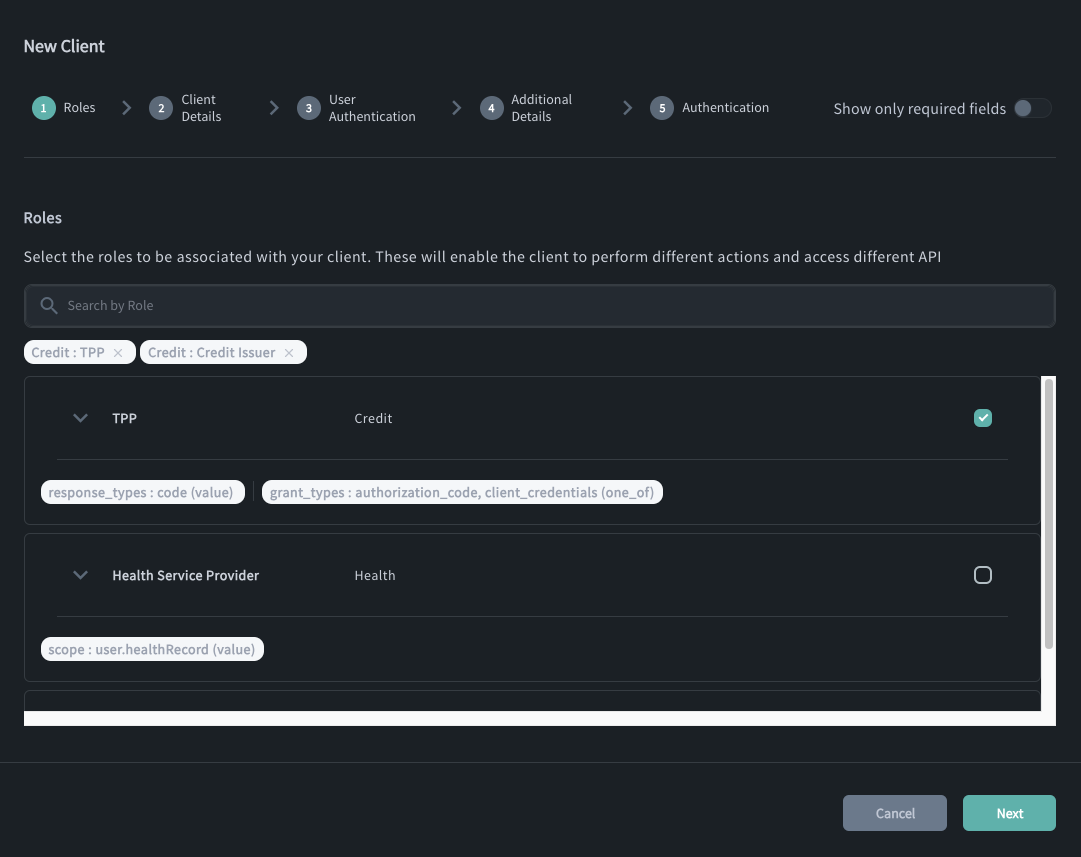
In the context of Applications, roles define what are the permissions your application has within an ecosystem. They control, for example, what grant types the application can use, what scopes it can request, and more.
If your Organisation participates in a Federation and a role is of the Federation type, the role definition binds the configured metadata to your application (relying party). The bound metadata is then exposed within
/.well-known/openid-federationresponses under themetadatakey. In other words, the metadata informs the metadata policies within subordinate statements issued by the Raidiam Connect platform.If no roles are available in the wizard, verify whether your Organisation has any roles assigned. If not, contact your Trust Framework Administrator.
-
Select Next.
-
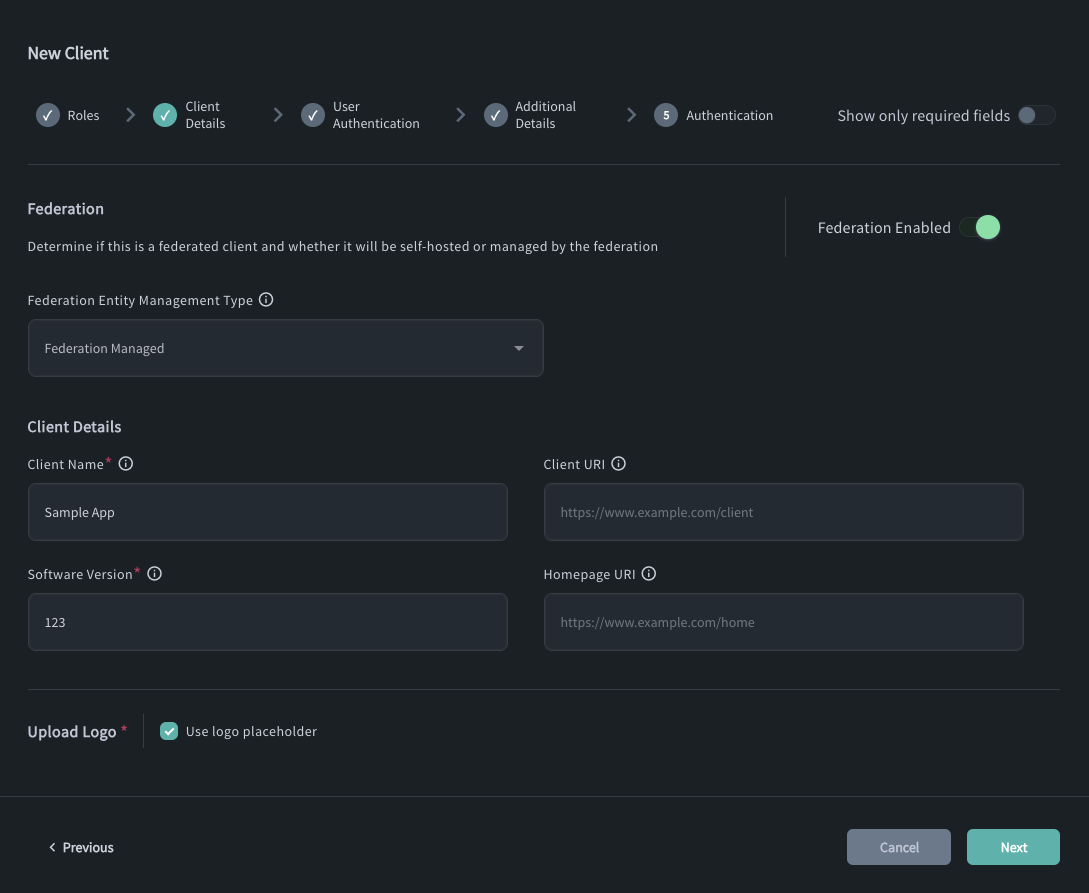
Define required Client Details:
-
Determine if this is a federated client and whether it will be self-hosted or managed by the federation.
An openid relying party can be in one of two modes:
-
Federation Managed - the client ID is automatically generated for the application and equals its entity ID.
-
Self Managed - designed for Relying Parties that wish to host their own federation
.well-known, the client ID is provided by the Organisation Administrator.
-
-
Client ID (for self-managed apps)
-
Client Name
-
Software (Application) Version
-
Upload logo or use a placeholder.
-
-
Configure User Authentication:
- Redirect URI - defines the URI where the user gets redirected back after they authenticate and provide consent to share their data.
-
Define Additional Details and configure how the client may authenticate to Raidiam APIs.
Field Description Require Signed Request Object Defines whether the request object needs to be signed while accessing Raidiam Connect's authorisation endpoint according to the OAuth JWT-secured Authorization Request (JAR RFC9101) specification. Token Signed Response Algorithm Defines the algorithm used to sign access, ID, and refresh tokens issued by Raidiam's Authorisation Server. Token Endpoint Authentication Method Defines the method of how the client application authenticates with Raidiam's Authorisation Server.One of: tls_client_auth,client_secret_basic,private_key_jwttls_client_certificate_bound_access_tokens If enabled, access tokens issued by Raidiam Authorisation Server are bound to the client application's certificate as specified by the OAuth 2.0 Mutual-TLS Client Authentication and Certificate-Bound Access Tokens (RFC8705) section #3. -
Save.
Client Registration at Authorization Server
When you create an application in Raidiam Connect, it becomes a registered
participant in the ecosystem’s trust framework.
However, to interact with Data Providers and obtain tokens, the application
must also be registered at each Authorization Server within the ecosystem.
The registration process depends on the ecosystem’s trust model:
Dynamic Client Registration (DCR)
If the ecosystem utilizes [Dynamic Client Registration](link placeholder):
-
Generate a Software Statement Assertion (SSA) through Raidiam Connect.
-
Use the SSA to register your client at the Data Provider’s Authorization Server by sending a DCR request.
This ensures the Authorization Server recognizes your client and assigns it a client identifier and configuration consistent with ecosystem requirements.
OpenID Federation
If the ecosystem uses OpenID Federation, client registration can occur in one of two ways:
-
Automatic Registration
The client can interact with the Authorization Server without prior manual registration.
It initiates an authorization or PAR (Pushed Authorization Request) flow, setting itsclient_idto the application’s entity identifier.
The server retrieves and verifies the client’s trust and configuration dynamically from its Federation metadata. -
Explicit Registration
The client (Relying Party) explicitly registers with the Authorization Server (OpenID Provider) by sending a registration request.
Instead of static metadata, the client provides its Entity Configuration or a Trust Chain.
Once registration is complete, the client can perform standard OpenID authentication and authorization flows.
Delete Application
For security purposes, Applications -- Software Statements -- can be only soft-deleted by disabling them.
You can disable a Software Statement by selecting the Delete button (bin
icon under Actions) or by using the Update Software Statement by ID
API
and setting the statement's status to Inactive.
Manage Applications Using APIs
Raidiam Connect allows organisations to integrate with the following APIs for Software Statement Management:
